How to Effectively Use the Windows Update Troubleshooter in South Africa
Introduction: Importance of Windows Updates and Common Issues
Keeping your Windows operating system up to date is essential for security, performance, and access to new features. However, many users in South Africa encounter issues during the update process, such as failed installations, error codes, or stuck updates. These problems can disrupt your workflow and leave your system vulnerable.
What is the Windows Update Troubleshooter?
The Windows Update Troubleshooter is a built-in tool designed by Microsoft to automatically detect and fix common problems that prevent Windows updates from installing correctly. It scans your system for issues like corrupted files, misconfigured settings, and connectivity problems, then attempts to resolve them without requiring advanced technical knowledge.
How to Access and Use the Windows Update Troubleshooter
- Open Settings: Click on the Start menu and select the gear icon to open Settings.
- Navigate to Troubleshoot: Go to Update & Security > Troubleshoot.
- Select Windows Update: Click on Additional troubleshooters and then select Windows Update.
- Run the Troubleshooter: Click Run the troubleshooter and follow the on-screen instructions.
- Apply Fixes: If the troubleshooter detects issues, it will suggest fixes. Apply them and restart your computer if prompted.
Common Windows Update Errors and How the Troubleshooter Helps
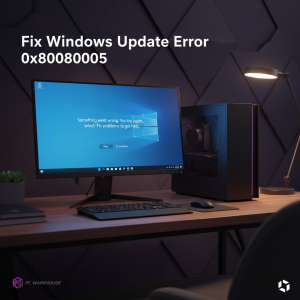
Some frequent Windows update errors include error codes like 0x80070002, 0x8024402F, and 0x80073712. These can be caused by corrupted update files, network issues, or system file corruption. The Windows Update Troubleshooter can clear the update cache, reset Windows Update components, and repair corrupted files to help resolve these errors.
Additional Tips for Resolving Windows Update Issues
- Check Your Internet Connection: Ensure you have a stable internet connection during updates.
- Free Up Disk Space: Updates require sufficient storage; delete unnecessary files if needed.
- Temporarily Disable Antivirus: Sometimes security software can block updates.
- Manually Reset Windows Update Components: Advanced users can reset services via Command Prompt.
When to Contact Professional IT Support in South Africa
If the Windows Update Troubleshooter does not resolve your issues or you encounter complex errors, it’s advisable to seek professional IT support. PC Warehouse offers expert remote and onsite support tailored to South African users, ensuring your system is updated and secure without hassle.
Why Choose PC Warehouse for Your IT Support Needs
PC Warehouse is a trusted South African IT service provider offering comprehensive solutions including remote IT support, device repairs, and tailored IT plans. Our knowledgeable team helps home users, businesses, and gamers keep their systems running smoothly with expert advice and reliable service.
Conclusion: Keeping Your Windows System Updated and Secure
Using the Windows Update Troubleshooter is a simple and effective first step to fix update problems. Combined with good maintenance practices and professional support from PC Warehouse, you can ensure your Windows system remains secure, efficient, and up to date.


About author