How to Fix a Laptop That Won’t Turn On: A Step-by-Step Guide
How to Fix a Laptop That Won’t Turn On: A Step-by-Step Guide
Experiencing a laptop that refuses to turn on can be frustrating, especially when you rely on it for work, gaming, or daily tasks. At PC Warehouse, South Africa’s trusted IT support and device repair provider, we understand the urgency of getting your laptop back up and running. This guide walks you through practical troubleshooting steps to help you fix your laptop not turning on.
Common Reasons Why a Laptop Won’t Turn On
Before diving into fixes, it’s important to understand common causes:
- Power supply issues (battery or charger problems)
- Hardware failures (RAM, motherboard, or hard drive)
- Overheating or internal component damage
- Faulty power button or connections
Step 1: Check the Power Source and Battery
Ensure your laptop is properly connected to a working power outlet. Try using a different socket or power strip. If your laptop has a removable battery, take it out and plug the laptop directly into the charger. If it powers on, the battery may need replacement.
Step 2: Perform a Hard Reset
Sometimes, residual electrical charge can prevent startup. Remove the battery and unplug the charger. Hold the power button down for 15-20 seconds to discharge any remaining power. Reconnect the power and try turning it on again.
Step 3: Inspect the Power Adapter and Charging Port
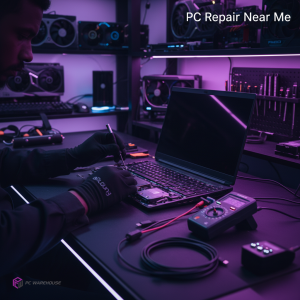
Check your charger for visible damage or frayed cables. Use a multimeter if available to test output voltage. Also, inspect the laptop’s charging port for debris or damage that could prevent proper charging.
Step 4: Test with External Display
If your laptop powers on but the screen stays black, connect it to an external monitor. This can help identify if the issue is with the display rather than the laptop itself.
Step 5: Remove External Devices
Disconnect all USB devices, external drives, and peripherals. Sometimes, faulty devices can cause boot issues.
Step 6: Check for Hardware Failures
If comfortable, open the laptop casing to reseat RAM modules and check for loose connections. Faulty RAM or hard drives can prevent startup. If unsure, seek professional assistance.
When to Seek Professional IT Support
If these steps don’t resolve the issue, it’s time to contact experts. PC Warehouse offers reliable device repair services and remote IT support across South Africa to diagnose and fix complex hardware or software problems efficiently.
Preventative Tips to Avoid Future Power Issues
- Use genuine chargers and accessories
- Keep your laptop clean and dust-free
- Avoid overheating by using cooling pads
- Regularly update software and drivers
- Schedule periodic professional check-ups
Conclusion
A laptop that won’t turn on can often be fixed with simple troubleshooting. However, professional support ensures your device is handled safely and effectively. Trust PC Warehouse for expert advice, quality repairs, and premium hardware solutions tailored for South African users.


About author