How to Fix Windows Update Error 0x80080005: A Step-by-Step Guide
Introduction to Windows Update Error 0x80080005
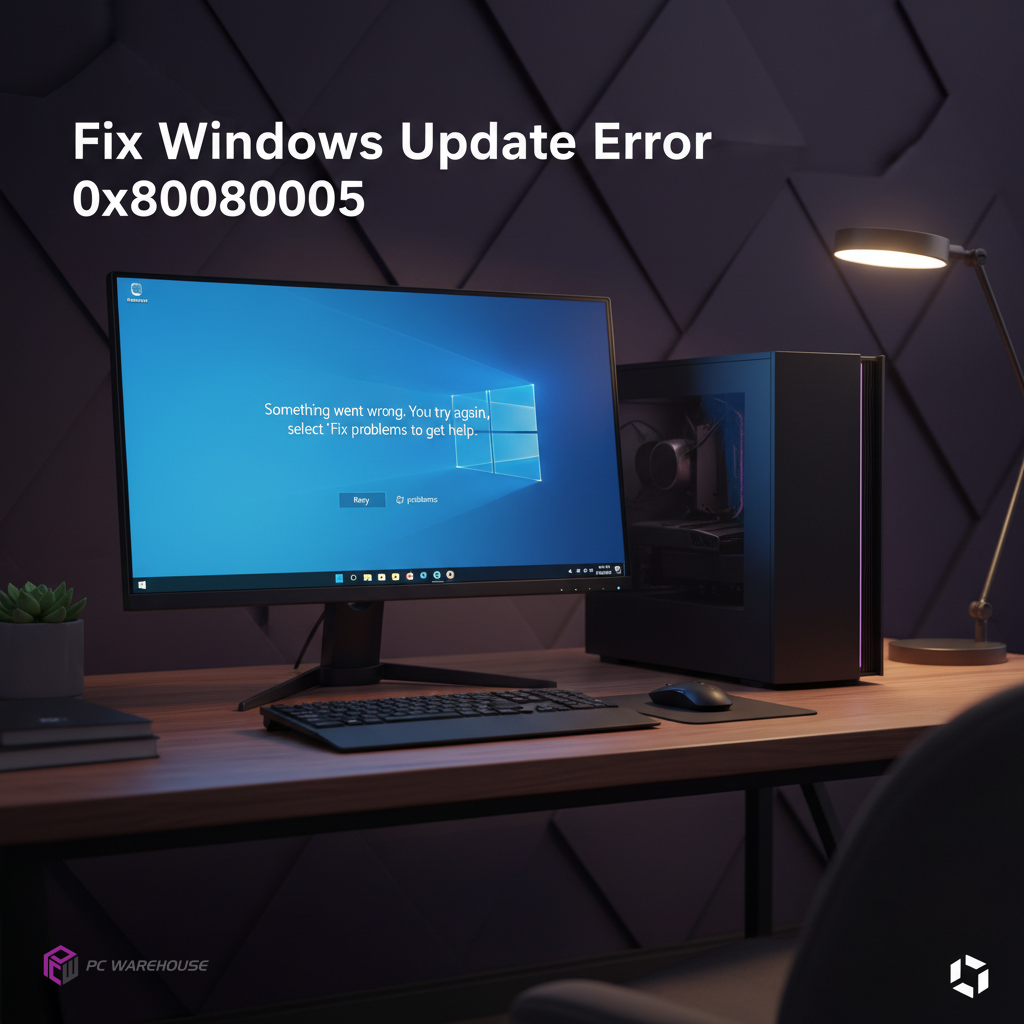
Windows updates are essential for maintaining system security and performance. However, encountering the Windows Update error code 0x80080005 can disrupt this process, causing frustration and potential security risks. This error typically indicates a problem with the Windows Update service or system files that prevent updates from installing correctly.
Common Causes of Error 0x80080005
- Corrupted Windows Update components
- Conflicts with third-party software or antivirus
- Damaged system files
- Insufficient permissions or corrupted user profiles
- Network connectivity issues
Preliminary Checks Before Fixing the Error
Before diving into advanced fixes, ensure your PC meets the following:
- Stable internet connection
- Enough disk space for updates
- Temporarily disable third-party antivirus software
- Run Windows Update troubleshooter (built-in tool)
Step-by-Step Fixes for Windows Update Error 0x80080005
1. Using Windows Update Troubleshooter
Navigate to Settings > Update & Security > Troubleshoot > Additional troubleshooters, then select Windows Update and run the troubleshooter. Follow the on-screen instructions to detect and fix issues automatically.
2. Resetting Windows Update Components Manually
Open Command Prompt as Administrator and run these commands one by one:
net stop wuauserv
net stop cryptSvc
net stop bits
net stop msiserver
ren C:WindowsSoftwareDistribution SoftwareDistribution.old
ren C:WindowsSystem32catroot2 catroot2.old
net start wuauserv
net start cryptSvc
net start bits
net start msiserver
This resets update components and clears corrupted files.
3. Running System File Checker and DISM Tools
Corrupted system files can cause update errors. Run these commands in an elevated Command Prompt:
sfc /scannow
dism /online /cleanup-image /restorehealth
These tools scan and repair system integrity issues.
4. Performing a Clean Boot to Identify Conflicts
Conflicting software can block updates. To perform a clean boot:
- Press Windows + R, type msconfig, and press Enter.
- Under the Services tab, check Hide all Microsoft services and click Disable all.
- Go to the Startup tab and open Task Manager to disable all startup items.
- Restart your PC and try updating again.
When to Seek Professional IT Support
If these steps do not resolve the error, it may indicate deeper system issues or hardware conflicts. PC Warehouse offers expert IT support and device repair services across South Africa to help diagnose and fix persistent Windows update errors efficiently.
Conclusion and Best Practices to Avoid Future Errors
Regularly updating your Windows OS is critical. Keep your system drivers updated, maintain sufficient disk space, and use trusted antivirus software. When errors like 0x80080005 occur, follow the outlined fixes or consult professional support to keep your PC running smoothly.


About author